When Lock Screen Text Ruins an Otherwise Perfect Portrait
Prompt Ayesha•
A portrait can look beautiful until the lock-screen clock appears in the wrong place. The subject may occupy too much of the frame, the date and time can overlap the hair, or the background may become too detailed to provide enough empty space for readable typography.
This is one of the biggest challenges when creating aesthetic lock-screen wallpapers with ChatGPT and Gemini. Unlike an ordinary portrait, a wallpaper needs to accommodate both the photograph and the phone’s interface. The upper portion must have enough visual breathing room for the date and clock, while the lower portion needs to retain the subject, clothing and important objects.
A bouquet portrait makes this particularly challenging because the flowers already occupy a significant part of the foreground. The main problem is balancing the subject’s position, the bouquet’s size and the empty sky area without losing the original facial identity.
Fix 1: Reserve Empty Sky Space for the Clock
Failure mode: The clock overlaps the subject’s hair or becomes difficult to read.
Image-generation models often prioritize filling the frame with the main subject. When you request a close-up portrait, the person may become too large, leaving insufficient space above the head for the lock-screen clock.
The solution is to describe the composition before describing the decorative details.
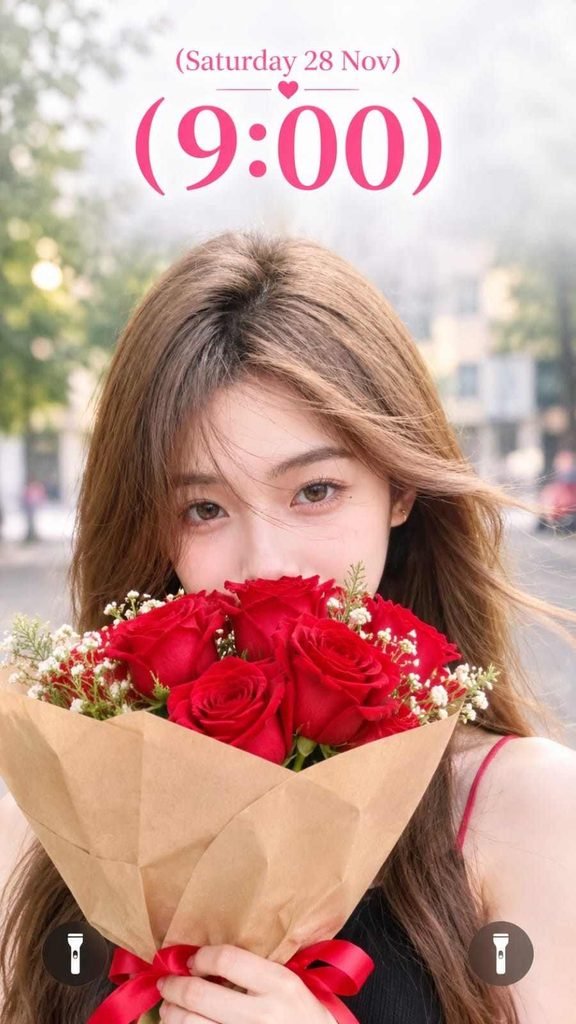
For this wallpaper, the upper portion should contain a softly faded white-grey sky. The woman should appear below that area, with enough separation between the top of her hair and the clock.
Use specific instructions:
Reserve the upper 20–25% of the frame for typography.
Keep the sky bright, soft and relatively uncluttered.
Position the subject in the middle and lower portions.
Avoid branches, buildings or dark objects behind the clock.
Maintain natural head proportions without shrinking the person excessively.
The phrase “a seamless misty white-grey sky fade with generous negative space above the subject” helps communicate that the empty area is intentional rather than unfinished background.
Fix 2: Preserve Facial Identity Behind the Bouquet
Failure mode: The generated face looks different or the eyes become distorted.
When a bouquet covers the lower half of a person’s face, the visible facial features become especially important. The eyes, eyebrows, forehead and hairstyle carry most of the recognizable identity.
The model may reconstruct these features differently when generating the flowers and adjusting the portrait composition. This can produce a face that resembles the reference but does not accurately preserve it.
If you are using an uploaded portrait, explicitly assign it as the identity reference.
Use instructions such as:
“Preserve the exact facial identity, eye shape, eyebrows, forehead, skin texture, hairstyle and natural facial proportions from the uploaded reference. Do not beautify, redesign or reinterpret the face.”
Also describe the bouquet’s position. The flowers should cover the lower half of the face naturally, while both eyes remain clearly visible and directed towards the camera.
This creates a more convincing composition than simply asking for a woman hiding behind flowers.
Fix 3: Keep the Bouquet Realistic and Proportionate
Failure mode: Roses merge together or the bouquet becomes oversized.
A bouquet containing several red roses, white baby’s breath and green foliage has multiple overlapping elements. The model must distinguish individual petals, flower heads, stems and wrapping paper.
When the bouquet becomes too large, it can cover the eyes or occupy nearly the entire lower frame. When it becomes too small, the intended close-up composition loses its visual impact.
Describe the flowers individually:
Multiple deep-red roses with visible layered petals.
Small white baby’s breath flowers between the roses.
Natural green foliage.
Brown kraft paper wrapping.
A red satin ribbon tied around the lower bouquet.
The wrapping paper should have realistic folds and visible paper texture. The roses should have individual shapes rather than appearing as one continuous red surface.
Use this instruction:
“Create a naturally proportioned bouquet of detailed red roses, small white baby’s breath flowers and green foliage, wrapped in textured brown kraft paper with a red satin ribbon.”
The bouquet should remain close to the camera, with natural depth and realistic overlap between the flowers and the subject’s face.
Fix 4: Create a Soft Background Without Losing Depth
Failure mode: The background becomes too sharp or looks artificially blurred.
The reference style uses a softly blurred urban street with trees and natural daylight. The background should provide atmosphere without competing with the face or flowers.
A simple blur instruction may produce an artificial background with no convincing depth. Instead, describe photographic characteristics such as shallow depth of field, soft bokeh and gradual background falloff.
For this portrait, the background should include softly blurred trees, distant buildings and subtle street details. The upper portion should gradually transition into a bright misty white-grey sky.
Use:
“Dreamy vintage 35mm film photography, shallow depth of field, softly blurred urban street, natural tree bokeh, gentle highlight bloom and smooth tonal transitions.”
The subject and bouquet should remain relatively sharp, while the distant environment becomes progressively softer. This separation helps the portrait retain its photographic appearance.
Fix 5: Keep the Clock Typography Separate From the Portrait
Failure mode: The date, time or decorative symbols appear incorrectly.
Lock-screen wallpapers need more than a beautiful photograph. The date, clock and decorative heart should be positioned accurately and remain readable.
For this design, the date appears above the clock in pink typography. A small heart sits between two thin horizontal lines, and the large time display is centered underneath.
The exact text is:
(Saturday 28 Nov)
(9:00)
The flashlight icons belong in the lower-left and lower-right corners.
Use explicit positioning instructions:
“Place the date in small pink serif typography at the top centre. Position a small pink heart between two thin horizontal lines underneath it. Display (9:00) in large pink serif numerals directly below.”
One important limitation is that image models can still distort individual letters and numbers. For exact results, generate the portrait and add the clock and icons afterward using a graphics editor if necessary. This gives you precise control over typography without regenerating the face or bouquet.
The Prompt
The following prompt is designed for both ChatGPT and Gemini. Upload your reference portrait and use it as the identity and appearance reference.
Create a vertical 9:16 ratio lock-screen wallpaper.Keep the exact facial features.A woman is wearing a black top with thin red-pink straps and small gold hoop earrings. She is holding a bouquet of red roses wrapped in brown kraft paper.The frame seamlessly fades into a misty white-grey sky space. Below the fade, the woman is captured in a close-up shot where playfully hiding the lower half of her face behind the red rose bouquet, her eyes looking directly at the camera with smiling eyes.
Lock-Screen UI Overlay: Centered in the upper faded sky area is pink typography reading “(Saturday 28 Nov)” in small font above “(9:00)”. At the bottom corners are flashlight icons.Dreamy vintage 35mm film with soft-focus bloom,a softly blurred urban street and trees background. Single photo
The instructions separate the upper typography area from the portrait, reducing the chance of overlapping elements. The identity and bouquet descriptions also establish which visual details must remain recognizable throughout the generation.
Running It
You can generate this wallpaper using either ChatGPT or Gemini.
ChatGPT workflow:
Open ChatGPT and upload your reference portrait.
Select the image-generation option or request an image edit.
Paste the complete prompt.
Generate the vertical wallpaper.
Check facial identity, clock placement and bouquet details.
Gemini workflow:
Open Gemini with image-generation capabilities.
Upload the reference portrait.
Paste the same prompt.
Request a vertical 9:16 lock-screen wallpaper.
Review the generated image for identity and typography accuracy.
Recommended settings:
Setting
Recommendation
Aspect ratio
9:16
Composition
Close-up portrait
Background
Soft urban bokeh
Photography
Vintage 35mm
Clock colour
Pink
Main subject
Lower-middle frame
Output
Single image
Generate two or three variations if the first result has incorrect text or an awkward bouquet position. Prioritize the face and composition before adjusting smaller decorative elements.
When It Goes Wrong
Symptom
Specific fix
Clock overlaps the hair
Increase the reserved upper sky space.
Face looks different
Reinforce the uploaded image as the identity reference.
Bouquet covers the eyes
Specify that both eyes must remain completely visible.
Roses look artificial
Request individually detailed petals and natural flower heads.
Bouquet becomes too large
Specify realistic proportions and preserve the close-up framing.
Background is too sharp
Request shallow depth of field and distant bokeh.
Sky looks like a white patch
Request a gradual, seamless misty fade.
Date or time is misspelled
Add the typography separately after image generation.
Flashlight icons are misplaced
Add the icons manually using a lock-screen editing tool.
Image crops the hair
Explicitly preserve the full top of the head and original framing.
Beyond This Rose Bouquet Wallpaper
The same composition technique works for many other lock-screen designs. You can use it for birthday portraits, anniversary wallpapers, couple photographs, festive portraits and aesthetic seasonal designs.
The most important principle is to plan the empty space before positioning the subject. A lock-screen wallpaper needs to work as both a photograph and a functional phone background.
Keep the face and important objects in the main visual area, reserve enough negative space for the clock, and use a background with controlled detail and soft tonal transitions.
When the composition is planned correctly, the result feels like a photograph designed specifically for a smartphone screen rather than an ordinary portrait with text added on top.
Curated daily AI photography prompts, Lightroom presets, and video editing transitions engineered to help creators elevate their visual content across Midjourney, Bing Copilot, and Flux.
Replacing a person’s background sounds like a simple editing task, but the result often changes much more than the background. The subject becomes too large, the camera perspective feels different, the clothing gets redesigned, or the original text and decorative elements disappear. Even when the background looks similar, the final image may no longer match […]
The hard problem here is that two instructions in this prompt compete directly. One asks for a deep teal-blue sky, cool teal-blue shadows, and a black fade climbing from the bottom edge. The other asks for the exact original face, hair, hands, and body proportions, with no artificial skin smoothing and no fake lighting. Image […]
The hard problem in this portrait is not the wavy hair or the cream wall. It is hand-to-string contact. A guitar forces two hands into precise, asymmetric jobs: one hand wraps the neck and presses individual strings, the other hovers over the soundhole with a relaxed strumming shape. Image models can fake a guitar body. […]