
Black and White Couple iPhone Wallpaper Prompt for a Romantic Lock Screen
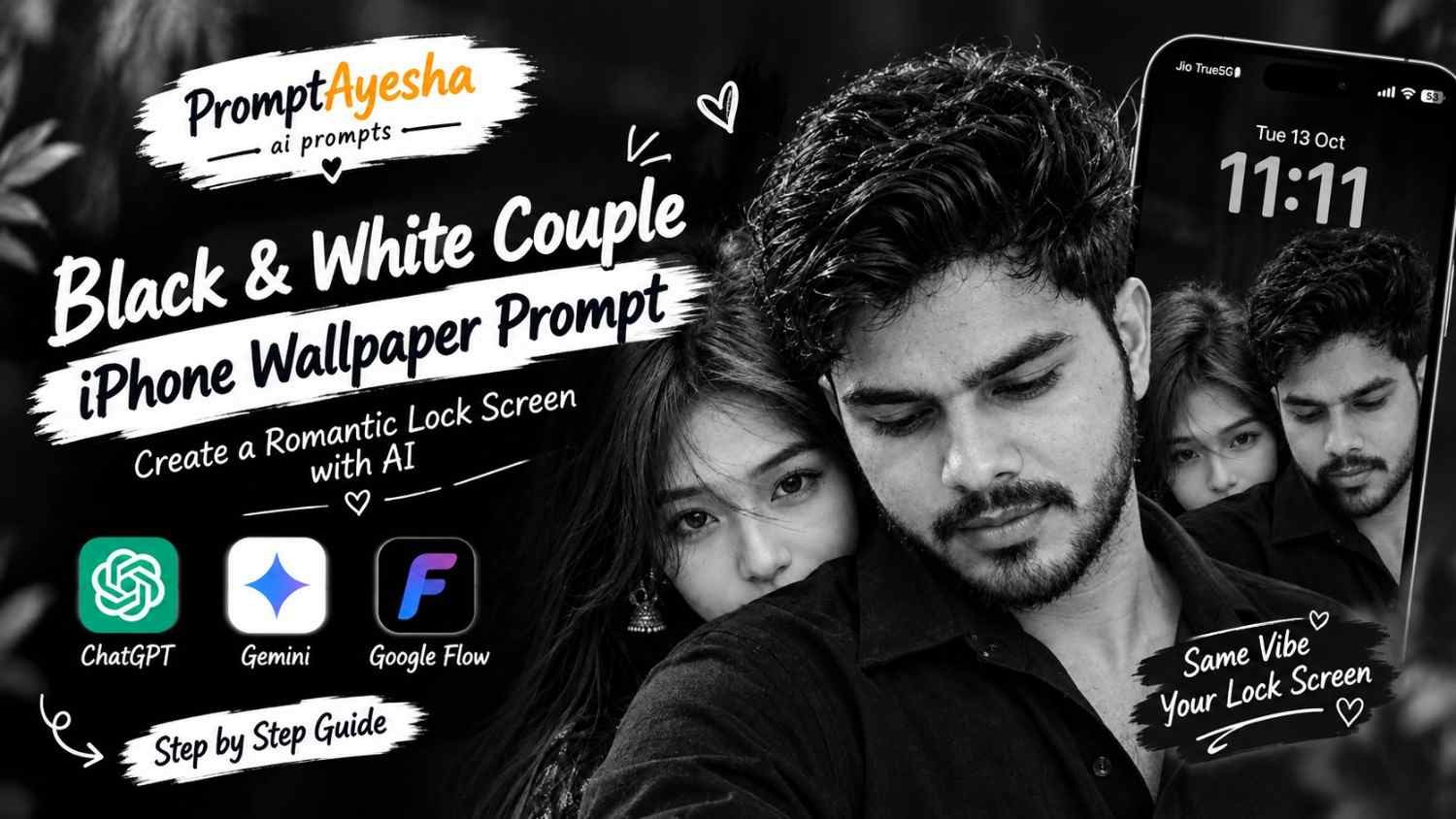
Featured image for: Black and White Couple iPhone Wallpaper Prompt for a Romantic Lock Screen
A beautiful phone wallpaper can make an ordinary lock screen feel more personal. A Black and White Couple iPhone Wallpaper Prompt helps you create a romantic monochrome portrait with a cinematic atmosphere, natural expressions, and an iPhone-inspired clock display. With the right ai prompt, you can use your own couple photos to create a coordinated wallpaper instead of relying on random images from the internet.
The style is simple but expressive: deep black clothing, soft silver highlights, natural facial details, and a close-up composition that gives the photograph an intimate feeling. The additional lock-screen elements, including the date, time, battery percentage, and status icons, complete the overall design.
What Makes This Black and White Couple iPhone Wallpaper Prompt Different?
The appeal of this wallpaper style comes from the relationship between the portrait and the lock-screen layout. Rather than placing two people side by side, the composition brings them close together.
The man appears in the foreground on the right, wearing a dark collared shirt and looking slightly downward. The woman stands or sits just behind him on the left, looking toward the camera. Her face is partially hidden behind his shoulder, creating a subtle, candid moment.
The monochrome treatment adds another layer to the image. Instead of bright colors, the photograph uses charcoal shadows, silver-gray highlights, and detailed textures. Individual hair strands, natural skin texture, and soft lighting help the final image resemble a real portrait.
This style works well for couples who want a matching wallpaper, a romantic lock screen, or a creative photo-editing project using their own photographs.
How to Create the Couple Wallpaper
Before generating the image, prepare a few things to help the AI understand your intended result.
- Choose clear reference photos: Use well-lit photos of both people, preferably with their faces visible.
- Keep the pose reference separate: If you have a sample wallpaper, upload it as the composition reference rather than as the identity reference.
- Decide on the lock-screen details: Choose the time, date, battery percentage, and carrier label before generating.
- Use a vertical canvas: A 9:16 composition is a useful starting point for a vertical wallpaper.
- Review the final image: Check the faces, hands, clock, status icons, and text before using it.
If your image generator supports multiple reference images, clearly explain which image controls the composition and which images provide the individuals’ appearance.
Black and White Couple iPhone Wallpaper Prompt — Copy and Use
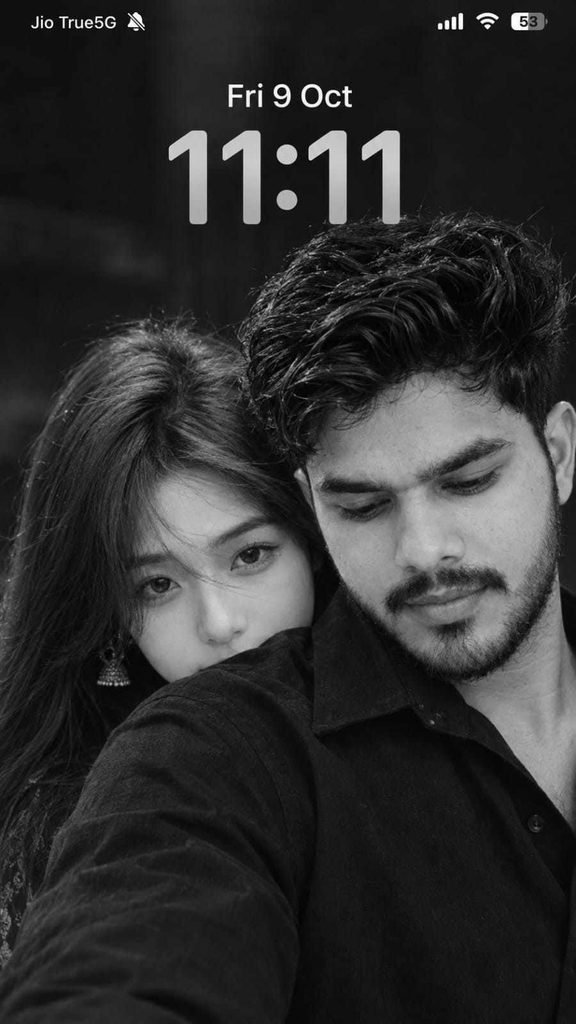
The following prompt is designed to create a romantic monochrome couple portrait with a complete iPhone-inspired lock screen. Upload the appropriate reference photographs before using it.
Ready-to-copy AI prompt
Note: Image generators may not reproduce small interface text perfectly. If the date, carrier name, or battery percentage is incorrect, add those details afterward using an image editor.
Getting Better Results with a Gemini Prompt
When using a gemini prompt or another image generator that supports image references, upload the reference images in a consistent order. Tell the tool exactly which photograph belongs to each person, and identify the sample wallpaper as the composition reference if you are using one.
Do not assume that uploading several photographs automatically preserves everyone’s identity. Compare the generated faces with your original images and regenerate if the facial features have changed noticeably.
For a more natural photograph, avoid adding too many competing effects. Soft shadows, realistic hair, and a clear separation between the foreground subject and background usually work better than excessive glow or heavy filters.
How to Get the iPhone Lock-Screen Look Right
A portrait and a lock screen are two different parts of the finished design. Paying attention to both can make the result more convincing.
1. Keep the clock readable
The upper portion of the image should have enough dark, uncluttered space for the clock and date. Avoid placing bright highlights directly behind the numerals.
2. Choose a consistent date and time
Specify one date and one time throughout your instructions. Inconsistent details can confuse the image generator and lead to an incorrect result.
3. Check the status bar
AI-generated interface icons can look convincing without being accurate. Review the carrier text, Wi-Fi symbol, battery percentage, and silent-mode icon before setting the image as your wallpaper.
4. Preserve natural faces
A strong monochrome filter should not remove the individual features that make each person recognizable. Keep skin texture, eye shape, hair details, and facial proportions natural.
5. Crop for your own device
A 9:16 canvas is a useful starting point, but phone displays differ. Preview the image on your device to ensure that the clock and faces are not obscured by the actual lock-screen interface.
Can You Customize the Prompt with ChatGPT?
Yes. You can use a chatgpt prompt to refine individual details before generating the image. For example, you could request softer lighting, a closer crop, a more visible expression, or a cleaner background without changing the original pose.
You can also change the interface details to match your preferred wallpaper design. However, if exact status-bar text matters, adding it manually after generation is often more reliable than repeatedly asking the image model to reproduce it.
Always review the finished image rather than assuming that every instruction has been followed perfectly.
Common Mistakes to Avoid
A few small problems can make an otherwise attractive wallpaper look artificial.
- Uploading unclear or heavily filtered identity photos.
- Giving conflicting instructions about the date and time.
- Asking for a dark background while placing bright text over bright highlights.
- Adding too many visual effects that hide facial details.
- Stretching a portrait to fit a different aspect ratio.
- Using an image with incorrect or unreadable lock-screen text without correcting it.
The goal is not to make the image look more complicated. It is to create a believable portrait that feels personal, balanced, and easy to use as a wallpaper.
Final Thoughts
A carefully planned monochrome portrait can turn a simple lock screen into something memorable. The best results come from clear reference images, a consistent composition, natural facial details, and a readable interface.
Try the prompt with your own photographs, review the result, and adjust the details that do not match your expectations. At Prompt Ayesha, the aim is to help readers explore creative image prompts while understanding how to use them effectively, rather than simply copying instructions without knowing what they do.
Use this design as a starting point, make it your own, and choose the version that feels most natural to you.
Complete Step-by-Step Editing Workflow
- Copy the prompt or preset code using the dedicated copy button above.
- Open your editing tool: Use your preferred AI image or video editing tool.
- Personalize the variables: Adjust the background, clothing, lighting, pose or mood according to your requirements.
- Generate & refine: Generate the image and make additional changes if required.
- Export: Save the final high-quality image for your social media platform.
Prompt Ayesha
The Prompt Ayesha curates practical AI prompts, photo-editing resources, video-editing ideas, and creator-focused tutorials designed to help readers create and edit digital content.