New Instagram Filter Unlocked: Create a Cinematic Navratri Photo with AI
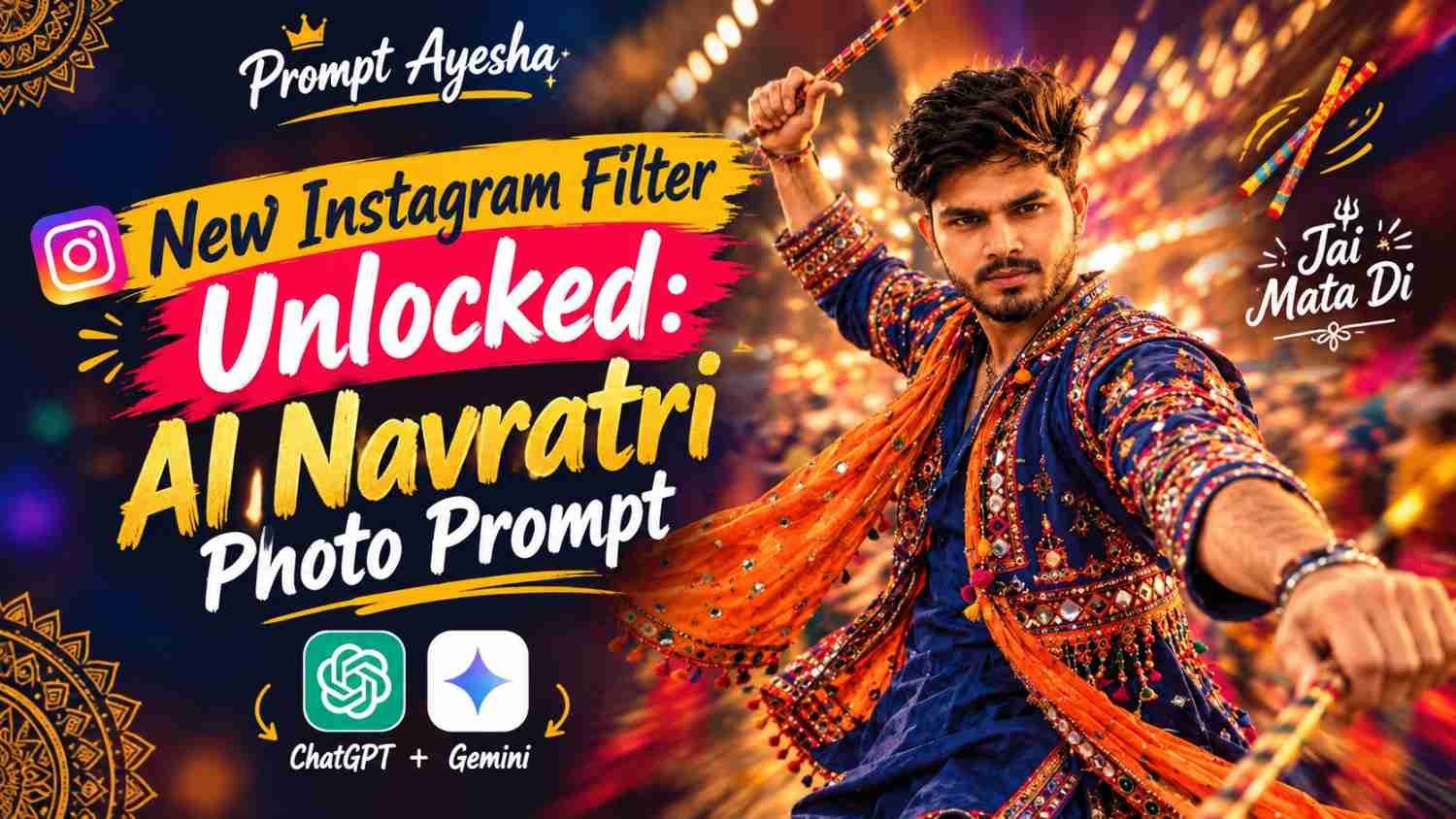
Featured image for: New Instagram Filter Unlocked: Create a Cinematic Navratri Photo with AI
If you love festive photography and creative Instagram trends, the New Instagram Filter Unlocked trend is a fun way to give your Navratri pictures a cinematic makeover. With the right AI prompt, you can transform a regular festive photograph into a vibrant editorial-style portrait featuring colorful traditional clothing, dynamic background motion blur, warm golden lighting, and realistic fabric details. This style is especially appealing to people who enjoy Garba, Dandiya, and eye-catching Instagram Reels covers.
What Is the New Instagram Filter Unlocked Trend?
The New Instagram Filter Unlocked trend focuses on creating photographs that look like they were captured during an energetic festive moment. Instead of applying a simple color filter, the effect combines long-exposure-style background streaks, soft facial lighting, and a sense of movement around the subject.
In the reference image, the blue traditional outfit, orange dupatta, decorative mirror work, and raised Dandiya sticks create a strong Navratri-inspired look. The colorful light trails in the background make the portrait feel lively while keeping attention on the subject.
This visual style can work well for Instagram posts, festive profile pictures, story covers, and Navratri-themed digital content.
How to Create the New Instagram Filter Unlocked Photo with AI
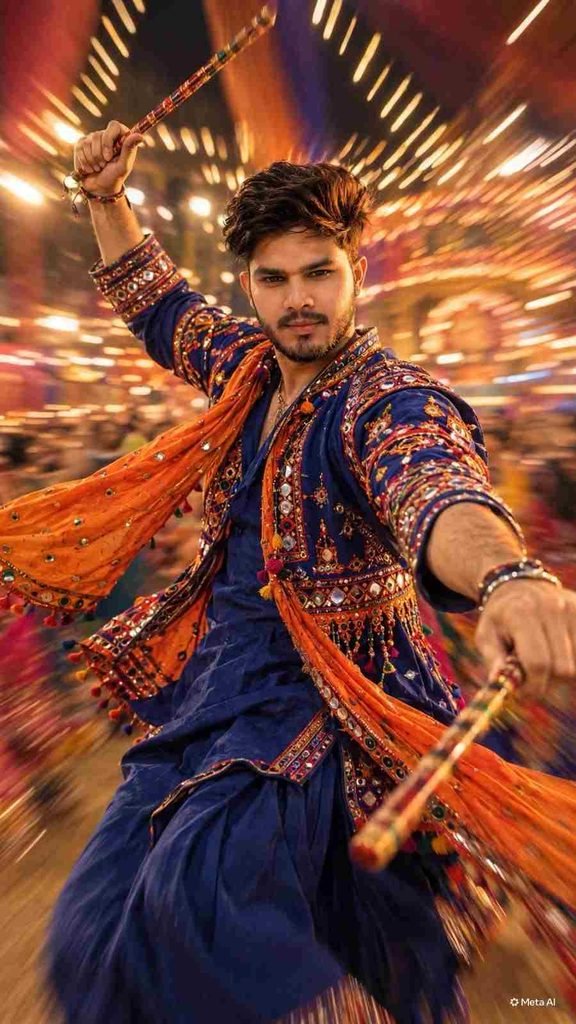
You can experiment with an image generator by using a detailed description of your desired look. For the best results, start with a clear reference photograph and describe the clothing, camera angle, lighting, background, and motion effect separately.
Here is a practical ChatGPT prompt you can adapt for your preferred image-generation tool:
Image prompt:
You can change the outfit colors, background, pose, and lighting to create a different result instead of repeating the same visual style.
Tips for Getting a More Realistic Result
A well-written Gemini prompt or image-generation instruction should describe the scene clearly rather than relying only on words such as “beautiful” or “ultra-realistic.” Specific visual details give the image generator more useful direction.
Consider these practical tips:
- Keep the face natural: If your tool supports reference images, use a photo you have permission to use and request that the person’s recognizable features remain consistent.
- Separate subject and background: Ask for a relatively sharp face with motion blur concentrated in the background.
- Describe the lighting: Warm side lighting can add depth without making the entire photograph look orange.
- Mention the fabric details: Mirror work, embroidery, jewelry, and dupatta textures help communicate the festive style.
- Choose the right ratio: Use 9:16 for Instagram Reels and Stories, or 16:9 for a landscape blog thumbnail.
- Review the final image: Check the hands, fingers, jewelry, clothing patterns, and facial details before publishing.
Results vary between image generators, so you may need to refine the prompt a few times.
Where Can You Use This AI Photo Style?
The New Instagram Filter Unlocked look is suitable for several kinds of festive content. You can use it for a Navratri photo collection, a Garba-night post, a Dandiya event announcement, or a themed social media cover.
For a consistent Instagram feed, keep the subject’s outfit and facial appearance recognizable while experimenting with different background colors and camera compositions. You can also create a matching set of images with close-up portraits, full-length outfit photographs, and action-inspired poses.
If you are using an image as a blog thumbnail, place the subject on one side and leave enough clear space for a short heading. This makes the design easier to read on mobile screens.
Common Mistakes to Avoid
Overusing motion blur can make the entire image appear unclear. Keep the face and important outfit details relatively sharp, and use the background to communicate movement.
Another common mistake is adding too many visual effects at once. Excessive glow, artificial skin smoothing, and overly saturated colors may reduce the photograph’s natural appearance. A balanced composition usually looks more polished.
If your AI prompt includes a reference photo, remember that image generators do not always reproduce facial identity, small jewelry details, or intricate patterns perfectly. Review the output before using it, and avoid presenting a generated image as an untouched photograph if that distinction matters to your audience.
Final Thoughts
The New Instagram Filter Unlocked trend offers a creative way to combine traditional Navratri fashion with modern cinematic photography. A royal-blue outfit, a flowing orange dupatta, warm light, and dynamic background streaks can produce a striking festive portrait when the elements are balanced carefully.
If you are exploring new styles for your next post, Prompt Ayesha can be a useful topic or keyword for discovering more AI-photo prompt ideas. Experiment with your own colors, poses, and backgrounds to develop a visual style that feels personal rather than copied.
The key is to use a clear prompt, check the generated result carefully, and create images that bring your own creative perspective to the trend.
Complete Step-by-Step Editing Workflow
- Copy the prompt or preset code using the dedicated copy button above.
- Open your editing tool: Use your preferred AI image or video editing tool.
- Personalize the variables: Adjust the background, clothing, lighting, pose or mood according to your requirements.
- Generate & refine: Generate the image and make additional changes if required.
- Export: Save the final high-quality image for your social media platform.
Prompt Ayesha
The Prompt Ayesha curates practical AI prompts, photo-editing resources, video-editing ideas, and creator-focused tutorials designed to help readers create and edit digital content.