
iPhone Lock Screen Prompt: Dreamy Pink Saree Portrait With Vintage Aesthetic
Featured image for: iPhone Lock Screen Prompt: Dreamy Pink Saree Portrait With Vintage Aesthetic
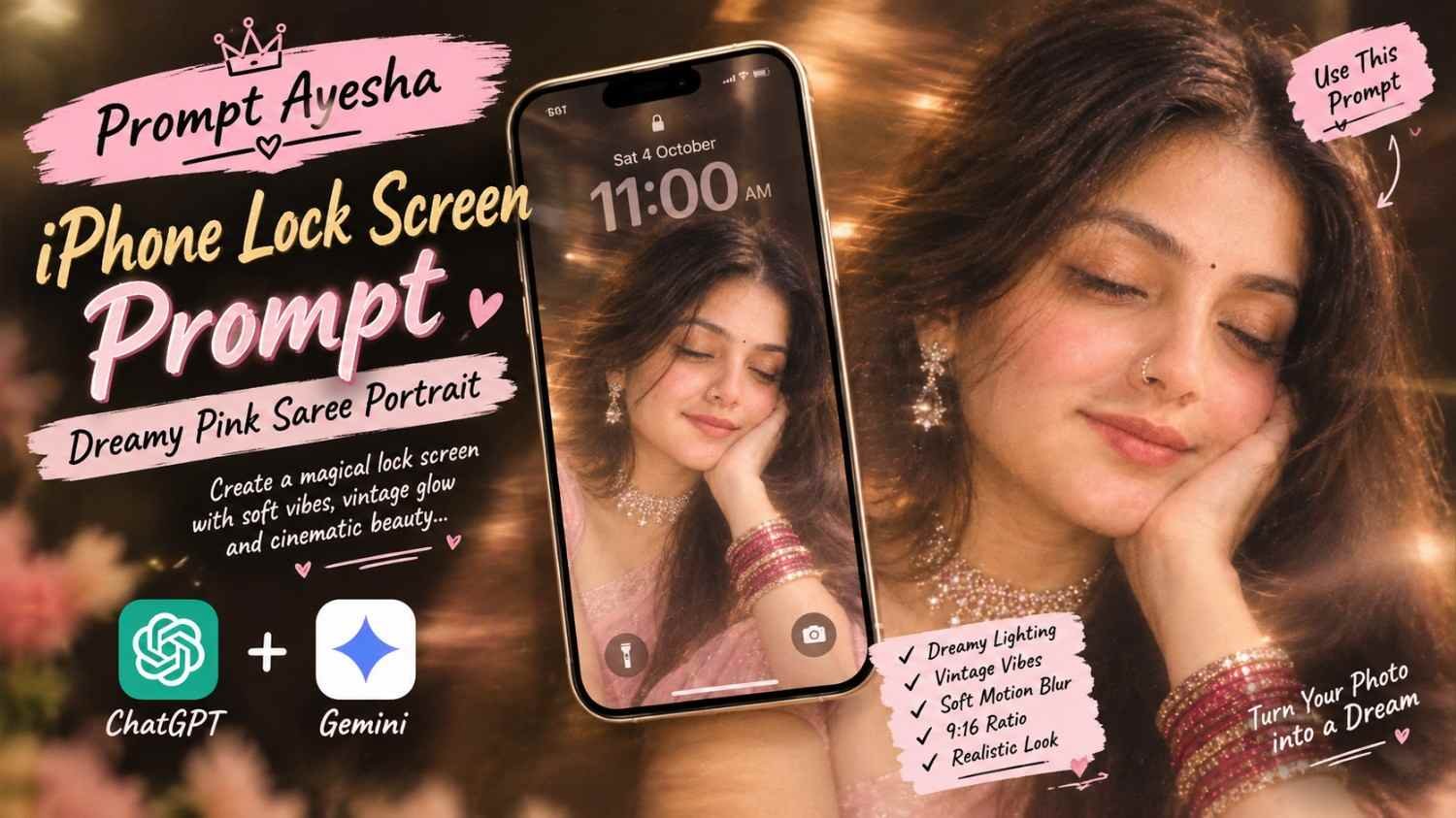
Want to turn a regular portrait into a dreamy iPhone lock screen with a soft vintage look? This prompt creates an ethereal 9:16 composition featuring a woman in a baby-pink saree, sparkling jewelry, closed eyes, and a gentle smile. The combination of soft motion blur, warm light, and the lock-screen interface gives the result a realistic smartphone-wallpaper feel.
This ai prompt is especially useful if you want to create a portrait that looks like a beautifully captured phone lock-screen moment rather than a standard studio photograph. The prompt also keeps the composition vertical so it works naturally for modern smartphone displays.
iPhone Lock Screen Prompt for a Dreamy Pink Saree Portrait
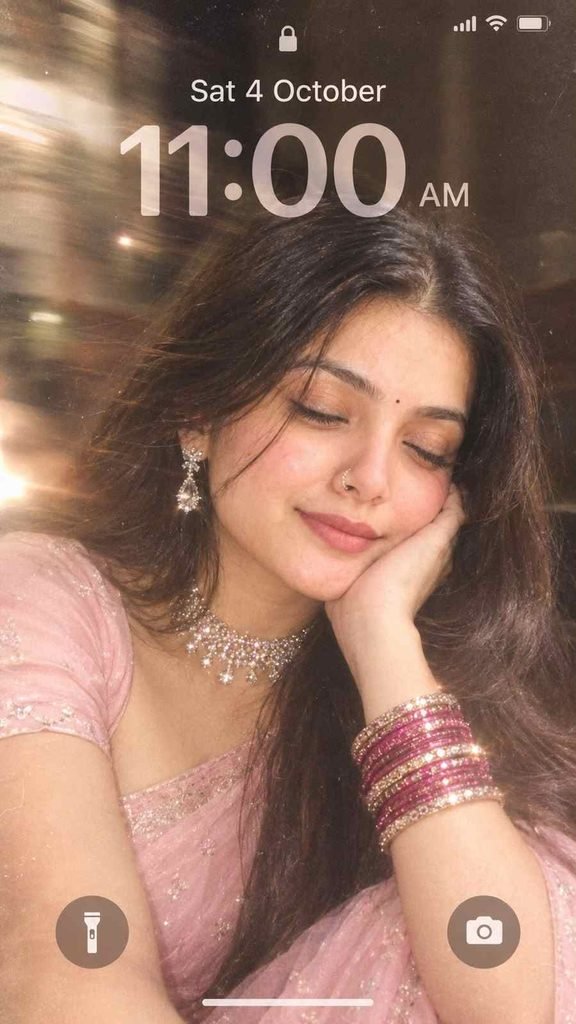
Copy the prompt below and paste it into your preferred image-generation tool:
Create a screenshot of an iPhone lock screen featuring a dreamy, ethereal extreme close-up portrait of a woman. The lock screen UI displays the date ‘Sat 4 October’ and the time ’11:00 AM’ in a large, translucent font, flashlight and camera icons at the bottom corners. The background image shows the woman with her eyes softly closed, smiling gently, and resting her cheek against her hand. She has long, open hair and is wearing a light baby pink saree with matching short sleeve blouse. She is adorned sparkling diamond choker necklace, matching drop earrings, a delicate nose ring, and a stack of glittering dark pink and gold bangles on her wrist. The entire image has a heavy vintage, ethereal aesthetic with soft motion blur, flashlight on her. 9:16 ratio.
Why This Style Looks So Aesthetic
The main attraction of this concept is the combination of a realistic portrait and smartphone lock-screen design. Instead of placing the subject against a plain background, the image uses the phone interface as part of the overall composition.
The soft pink saree creates a delicate visual tone, while the darker pink and gold bangles provide contrast. The jewelry adds small highlights that become more noticeable because of the warm lighting.
The woman’s closed eyes and gentle smile also create a relaxed, candid feeling. Her hand supporting her cheek makes the pose look natural rather than heavily staged.
Creating the Vintage Ethereal Effect
The vintage appearance comes from several elements working together:
- Soft motion blur
- Warm glowing highlights
- Slightly hazy lighting
- Film-inspired texture
- Dreamy background
- Soft facial details
- Gentle shadows
- Subtle light flare
- Low-contrast photographic finish
The important thing is not to make the entire image blurry. The face, jewelry and important details should remain recognizable while the surrounding areas have a softer appearance.
Pink Saree and Jewelry Details
The baby-pink saree gives the portrait a soft and elegant appearance. A matching short-sleeve blouse keeps the styling consistent with the reference concept.
The jewelry should remain detailed but realistic. The sparkling diamond-style choker, matching drop earrings and delicate nose ring add small points of light around the face.
The dark pink and gold bangles are particularly useful for adding color near the hand because the hand is an important part of the composition.
Getting the Lock Screen Composition Right
The lock-screen UI is an important part of this concept. The large translucent date and time should remain readable without completely covering the woman’s face.
The flashlight and camera icons should appear naturally at the bottom corners, similar to a modern smartphone lock screen.
For the best composition, keep the woman’s face slightly below the clock area so that the UI and portrait don’t compete with each other.
If you’re using a gemini prompt, adding a clear reference image can help the tool understand the desired pose, clothing, lighting and overall photographic mood.
Keep the Portrait Photorealistic
A common problem with highly stylized image prompts is that the final result can start looking like digital artwork. For this concept, the portrait should retain:
- Natural skin texture
- Realistic hair strands
- Realistic jewelry reflections
- Natural facial proportions
- Authentic fabric texture
- Soft photographic shadows
- Realistic light falloff
Avoid excessive skin smoothing or overly sharp facial details. A little softness works better for the vintage aesthetic.
Soft Motion Blur and Flashlight Effect
The flashlight effect should illuminate the woman softly rather than creating a harsh white hotspot.
A subtle glow around the illuminated areas can make the portrait feel more atmospheric. The motion blur should mainly affect the surrounding hair, light streaks and edges while keeping the core facial features recognizable.
This balance creates the impression of a real low-light phone photograph with a slightly dreamy camera effect.
Using a Reference Image
If your image-generation tool supports reference images, upload a clear portrait and use it to guide the appearance of the subject.
You can specify which elements should remain consistent, such as facial appearance, hairstyle or pose, while allowing the generated image to recreate the saree, jewelry, lighting and lock-screen aesthetic.
A chatgpt prompt can also be adapted for different image-generation workflows by separating the subject description from the lighting, composition and smartphone UI instructions.
Perfect for 9:16 Content
The 9:16 ratio makes this concept ideal for smartphone wallpapers, Instagram Stories, Reels covers and Pinterest-style vertical content.
Because the composition is already designed around a phone screen, the portrait naturally fills the vertical frame. Keeping the face and upper body within the central area also helps prevent important details from being cropped.
Tips for Better Results
For a more convincing result:
- Use a high-quality reference image.
- Keep the facial expression soft and natural.
- Don’t make the motion blur too strong.
- Keep the eyes and facial features recognizable.
- Use warm rather than harsh white lighting.
- Keep the jewelry realistic.
- Make the lock-screen text translucent.
- Leave enough space for the date and time.
- Maintain a true 9:16 composition.
- Avoid unnecessary objects in the background.
Final Thoughts
This style works particularly well if you want something that feels like a dreamy personal lock-screen photograph rather than a typical AI portrait. The combination of the baby-pink saree, sparkling jewelry, soft expression, vintage grain and glowing flashlight creates a romantic and cinematic mood.
You can experiment with different saree colors, jewelry combinations and lighting while keeping the same lock-screen concept. For more creative photo-generation ideas and ready-to-use prompts, Prompt Ayesha can be a useful place to explore similar portrait styles.
Complete Step-by-Step Editing Workflow
- Copy the prompt or preset code using the dedicated copy button above.
- Open your editing tool: Use your preferred AI image or video editing tool.
- Personalize the variables: Adjust the background, clothing, lighting, pose or mood according to your requirements.
- Generate & refine: Generate the image and make additional changes if required.
- Export: Save the final high-quality image for your social media platform.
Prompt Ayesha
The Prompt Ayesha curates practical AI prompts, photo-editing resources, video-editing ideas, and creator-focused tutorials designed to help readers create and edit digital content.